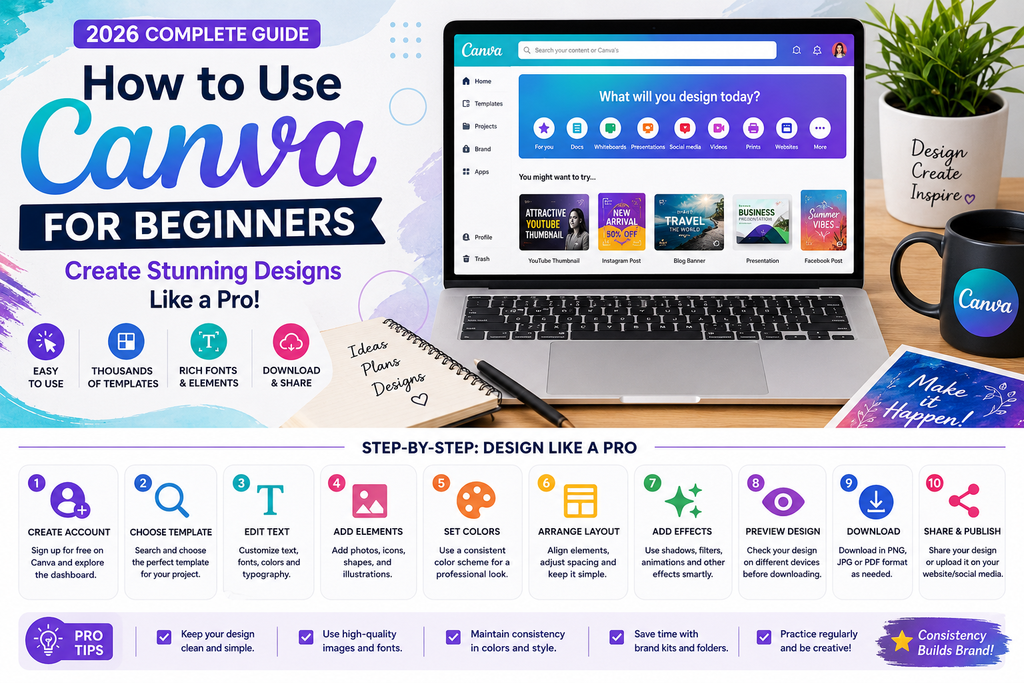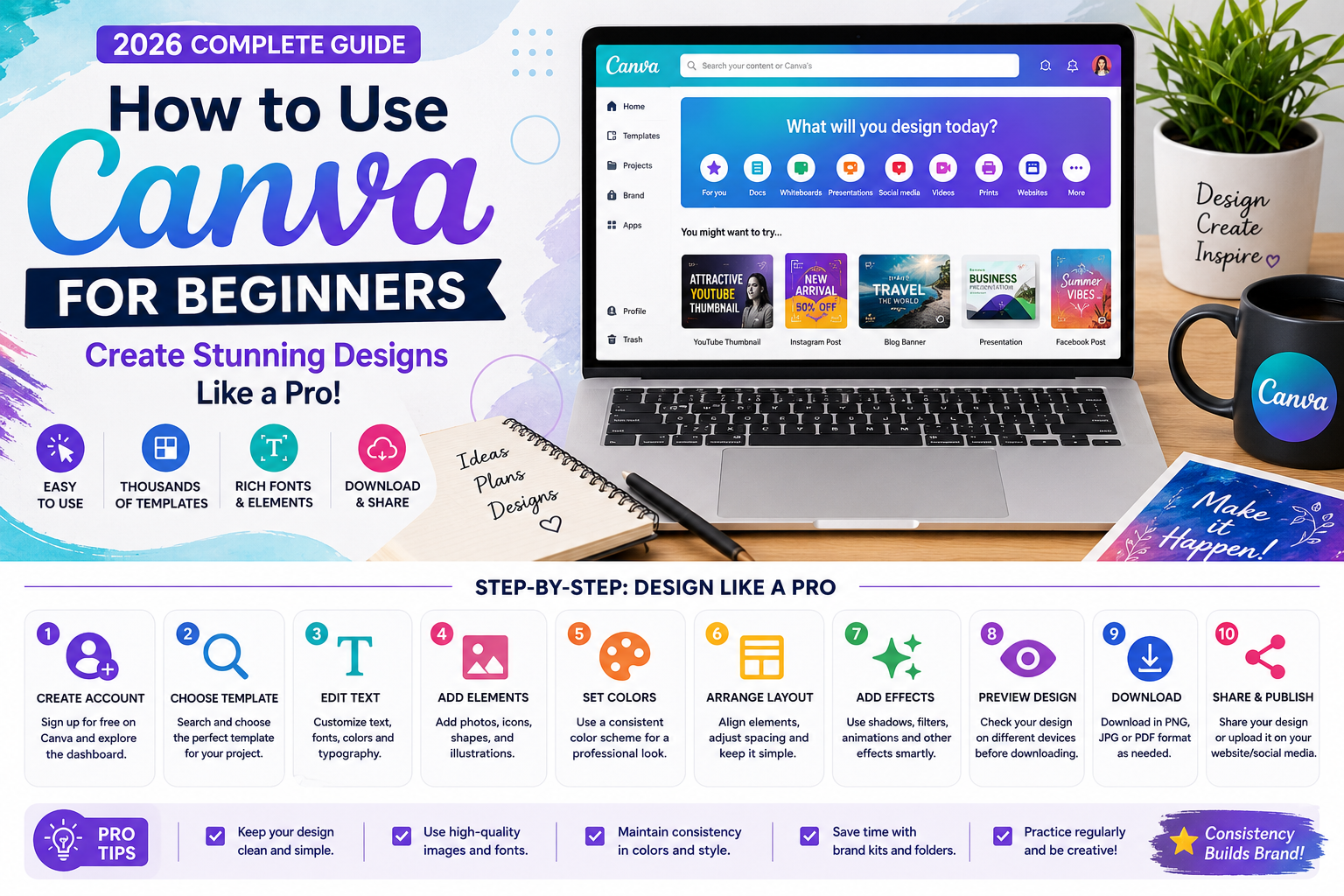
Canva is a popular graphic design platform that helps beginners create professional-looking designs without advanced design skills. Whether you want to make social media posts, blog thumbnails, YouTube thumbnails, presentations, or business graphics, Canva provides ready-made templates and easy editing tools.
You do not need expensive software to get started. With a free Canva account and a little practice, you can create attractive designs for your website, social media pages, or online business.
In this guide, you will learn how to use Canva step by step and discover practical tips for creating better designs in 2026.
What Is Canva?
Canva is an online design platform that offers templates, fonts, illustrations, photos, and other design elements. You can use it in a web browser or through its mobile and desktop applications.
Canva is useful for bloggers, students, freelancers, small business owners, and content creators. Its drag-and-drop editor makes it easier to arrange text, images, shapes, and other elements.
Some advanced features and design assets require a paid subscription, but beginners can start with the free version.
Step 1: Create a Canva Account
First, visit the official Canva website at https://www.canva.com/.
Create an account using one of the available sign-up options. After signing in, you will reach the Canva dashboard, where you can search for templates and start new projects.
Choose a design type that matches your goal. For example, you might select a presentation, poster, social media post, or YouTube thumbnail.
Step 2: Choose the Right Template
Templates help you start designing without building everything from scratch.
Use the search bar to find a template related to your project. For example, search for a blog banner, Instagram post, business flyer, or YouTube thumbnail.
Before choosing a template, consider your audience and the purpose of the design. A business graphic may need a clean layout, while a creative social media post might benefit from brighter colors.
Choose a template that you can customize rather than leaving it exactly as it is.
Step 3: Customize Text and Fonts
Text is one of the most important elements of a design. Your main heading should communicate the message quickly and clearly.
Click the text in your chosen template to edit it. You can change the wording, font, size, color, alignment, and spacing using the available editing options.
Follow these tips for better typography:
- Use a clear heading that communicates the main idea.
- Choose readable fonts for paragraphs and supporting text.
- Limit the number of different fonts.
- Keep enough space between text elements.
- Check that the text remains readable on mobile screens.
Avoid placing too much text on a single graphic. A simple message often works better than a crowded design.
Step 4: Add Images and Design Elements
Canva allows you to add images, shapes, icons, illustrations, and other elements to your design.
Use the Elements and Photos sections to explore available resources. You can also upload your own images if you have the right to use them.
For a blog thumbnail, choose an image that clearly relates to the article. For example, an article about WordPress could use a website dashboard or laptop image.
Do not use random graphics simply to fill empty space. Each element should support the main message.
Step 5: Choose a Consistent Color Scheme
Colors help establish a recognizable visual identity. If you create graphics for a website or business, use a consistent set of colors across your designs.
For a professional technology website, you might combine navy blue, white, and a bright accent color. For home décor content, softer neutral colors may be more suitable.
Make sure there is enough contrast between the background and the text. Light text on a light background can be difficult to read.
Save your preferred colors and reuse them where possible to maintain consistency.
Step 6: Create a YouTube Thumbnail
YouTube thumbnails help viewers understand what a video is about before clicking.
To create one in Canva:
- Start a YouTube thumbnail design.
- Choose a suitable template or begin with a blank layout.
- Add a relevant image or visual.
- Write a short, readable headline.
- Use contrasting colors to separate text from the background.
- Review the design at a smaller size.
- Download it in a suitable image format.
Avoid misleading images or claims that do not match the video. An attractive thumbnail should accurately represent the content.
Step 7: Design a Blog Featured Image
Bloggers can use Canva to create consistent featured images for their articles.
For example, a WordPress tutorial might feature a laptop, a website layout, and a short title. An AI tools article could use technology-related illustrations and a simple headline.
Before designing, check your WordPress theme’s recommended image dimensions. A 16:9 image, such as 1200 × 675 pixels, is a useful starting point for many blog layouts, although the ideal size depends on your theme.
Keep important text away from the edges so it does not get cropped on different screens.
Step 8: Use Canva for Social Media Posts
Canva offers templates for different social media formats. You can create Facebook posts, Instagram graphics, Pinterest pins, and other promotional materials.
Choose the format that matches the platform where you plan to publish. Review the latest recommended dimensions if the design must fit a specific placement.
For a consistent social media presence, use similar colors, fonts, and logo placement across your posts.
You can also prepare a group of related graphics in advance to make content planning easier.
Step 9: Download Your Design
When your design is ready, use Canva’s Share or Download option.
Common formats include:
- PNG: Useful for many digital graphics and images that need clear details.
- JPG: Often suitable for photographs and smaller image files.
- PDF: Useful for documents, printable materials, and certain presentations.
Choose the format based on how you intend to use the design. For a website image, consider both visual quality and file size.
After downloading, open the file and check that the text, layout, and image quality look correct.
Step 10: Use Canva for Freelancing
Canva skills can help you offer simple design services to clients.
Possible services include:
- Social media post design
- YouTube thumbnail creation
- Blog featured image design
- Presentation design
- Business flyers and promotional graphics
- Basic brand graphics
Start by creating a small portfolio with original sample designs. Explain what each design is intended to achieve and show that you can follow a consistent visual style.
Before accepting paid work, review Canva’s current licensing terms for the assets and features you use. Do not assume every template, image, font, or element can be redistributed in every way.
Common Canva Mistakes to Avoid
Beginners often make designs difficult to read by using too many colors, fonts, or decorative elements.
Avoid these common mistakes:
- Adding too much text to a graphic.
- Using low-quality or unrelated images.
- Ignoring mobile readability.
- Mixing several unrelated design styles.
- Stretching images out of proportion.
- Using assets without checking their licensing requirements.
- Downloading a large image when a smaller file would be sufficient for the website.
A clean design with a clear message is often more effective than a complicated layout.
Is Canva Free for Beginners?
Canva offers a free plan with a range of design tools and templates. Some premium assets, features, and collaboration options may require a paid plan.
The best approach is to begin with the free features and upgrade only if you need specific tools that are not included. Check the official Canva website for current plan details and limitations.
Conclusion
Canva is a useful starting point for anyone who wants to create digital graphics without learning complicated design software. You can use it to make blog thumbnails, YouTube graphics, social media posts, presentations, and promotional materials.
Start with one simple project, learn how templates and text editing work, and gradually develop your own style. With practice, you can create more consistent designs for your website, social media accounts, or freelance portfolio.
Frequently Asked Questions
Is Canva suitable for beginners?
Yes. Its templates and drag-and-drop editor make it accessible to beginners who have little or no graphic design experience.
Can I use Canva for blog thumbnails?
Yes. You can create featured images for blog posts and export them in a suitable format for your website.
Can I earn money using Canva?
You can offer design services such as social media graphics, thumbnails, and presentations. Earnings depend on your skills, portfolio, pricing, and ability to find clients.
Is Canva better than professional design software?
It depends on the project. Canva is convenient for quick designs and template-based work, while professional software may provide more advanced control for complex design projects.