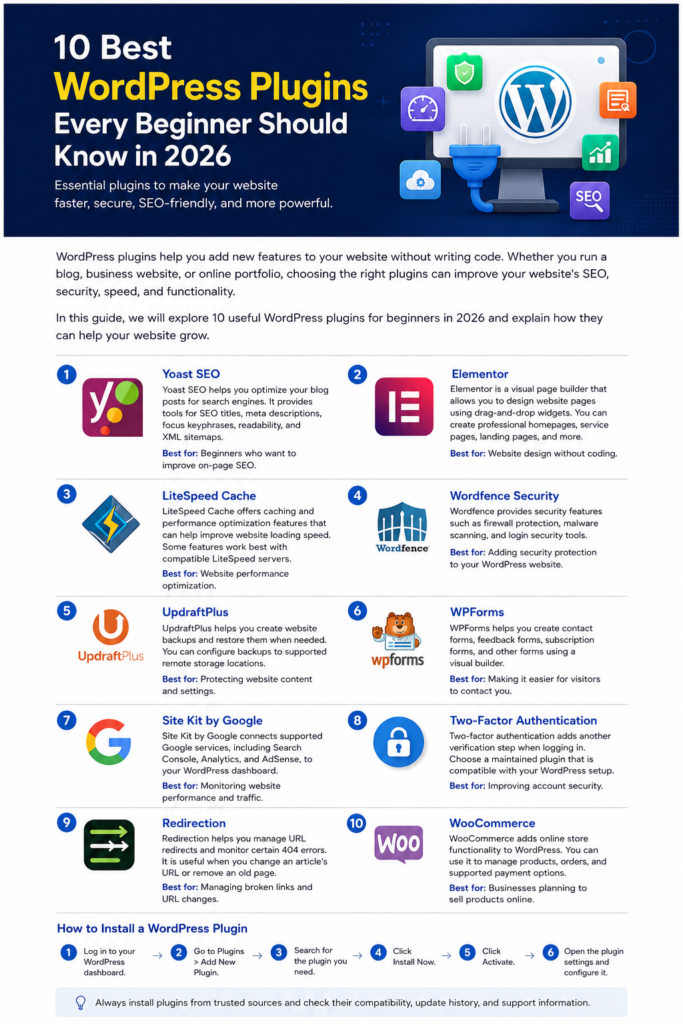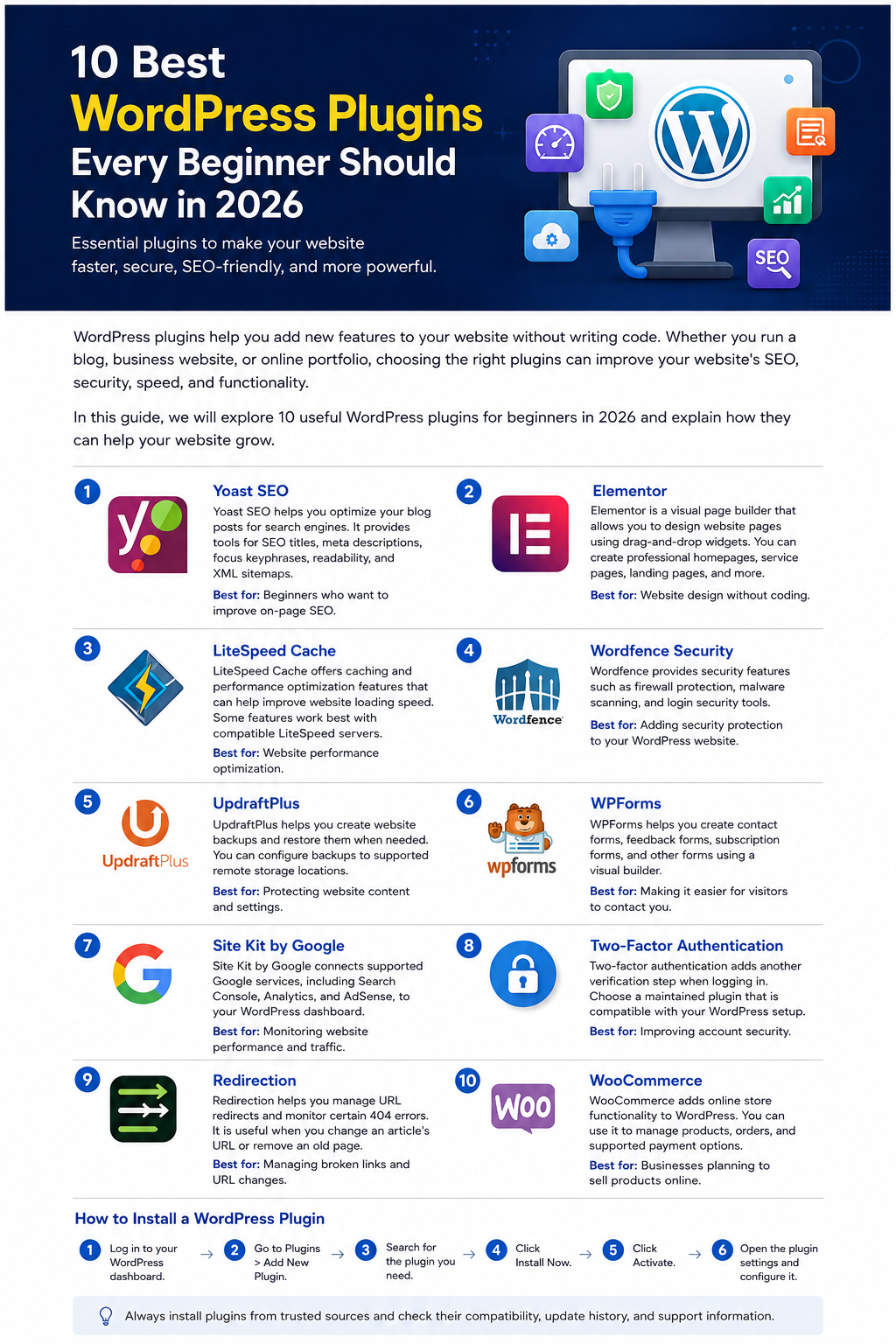
WordPress plugins help you add new features to your website without writing code. Whether you run a blog, business website, or online portfolio, choosing the right plugins can improve your website’s SEO, security, speed, and functionality.
In this guide, we will explore 10 useful WordPress plugins for beginners in 2026 and explain how they can help your website grow.
1. Yoast SEO
Yoast SEO helps you optimize your blog posts for search engines. It provides tools for SEO titles, meta descriptions, focus keyphrases, readability, and XML sitemaps.
Best for: Beginners who want to improve on-page SEO.
2. Elementor
Elementor is a visual page builder that allows you to design website pages using drag-and-drop widgets. You can create professional homepages, service pages, landing pages, and other layouts.
Best for: Website design without coding.
3. LiteSpeed Cache
LiteSpeed Cache offers caching and performance optimization features that can help improve website loading speed. Some features work best with compatible LiteSpeed servers.
Best for: Website performance optimization.
4. Wordfence Security
Wordfence provides security features such as firewall protection, malware scanning, and login security tools.
Best for: Adding security protection to your WordPress website.
5. UpdraftPlus
UpdraftPlus helps you create website backups and restore them when needed. You can configure backups to supported remote storage locations.
Best for: Protecting website content and settings.
6. WPForms
WPForms helps you create contact forms, feedback forms, and other forms using a visual builder.
Best for: Making it easier for visitors to contact you.
7. Site Kit by Google
Site Kit by Google connects supported Google services, including Search Console, Analytics, and AdSense, to your WordPress dashboard.
Best for: Monitoring website performance and traffic.
8. Wordfence Login Security or an Alternative Two-Factor Plugin
Two-factor authentication adds another verification step when logging in. Choose a maintained plugin that is compatible with your WordPress setup.
Best for: Improving account security.
9. Redirection
Redirection helps you manage URL redirects and monitor certain 404 errors. It is useful when you change an article’s URL or remove an old page.
Best for: Managing broken links and URL changes.
10. WooCommerce
WooCommerce adds online store functionality to WordPress. You can use it to manage products, orders, and supported payment options.
Best for: Businesses planning to sell products online.
How to Install a WordPress Plugin
Follow these simple steps to install a plugin:
- Log in to your WordPress dashboard.
- Open Plugins → Add New Plugin.
- Search for the plugin you need.
- Click Install Now.
- Click Activate.
- Open the plugin settings and configure it carefully.
Always install plugins from trusted sources and check their compatibility, update history, and support information.
How Many Plugins Should You Install?
There is no fixed ideal number of plugins. The important thing is to install only the plugins you actually need. Too many poorly maintained or resource-heavy plugins may affect website performance and security.
Avoid installing multiple plugins that perform the same function unless you have a specific reason.
Conclusion
The right WordPress plugins can simplify website management, improve security, support SEO, and add useful features. For a new blog, start with an SEO plugin, a backup solution, a security tool, and only the additional features your website needs.
Choose carefully, keep everything updated, and back up your website before making major changes.
Visit TigarBlogger for more WordPress tutorials, blogging tips, AI tools, and practical digital guides.