
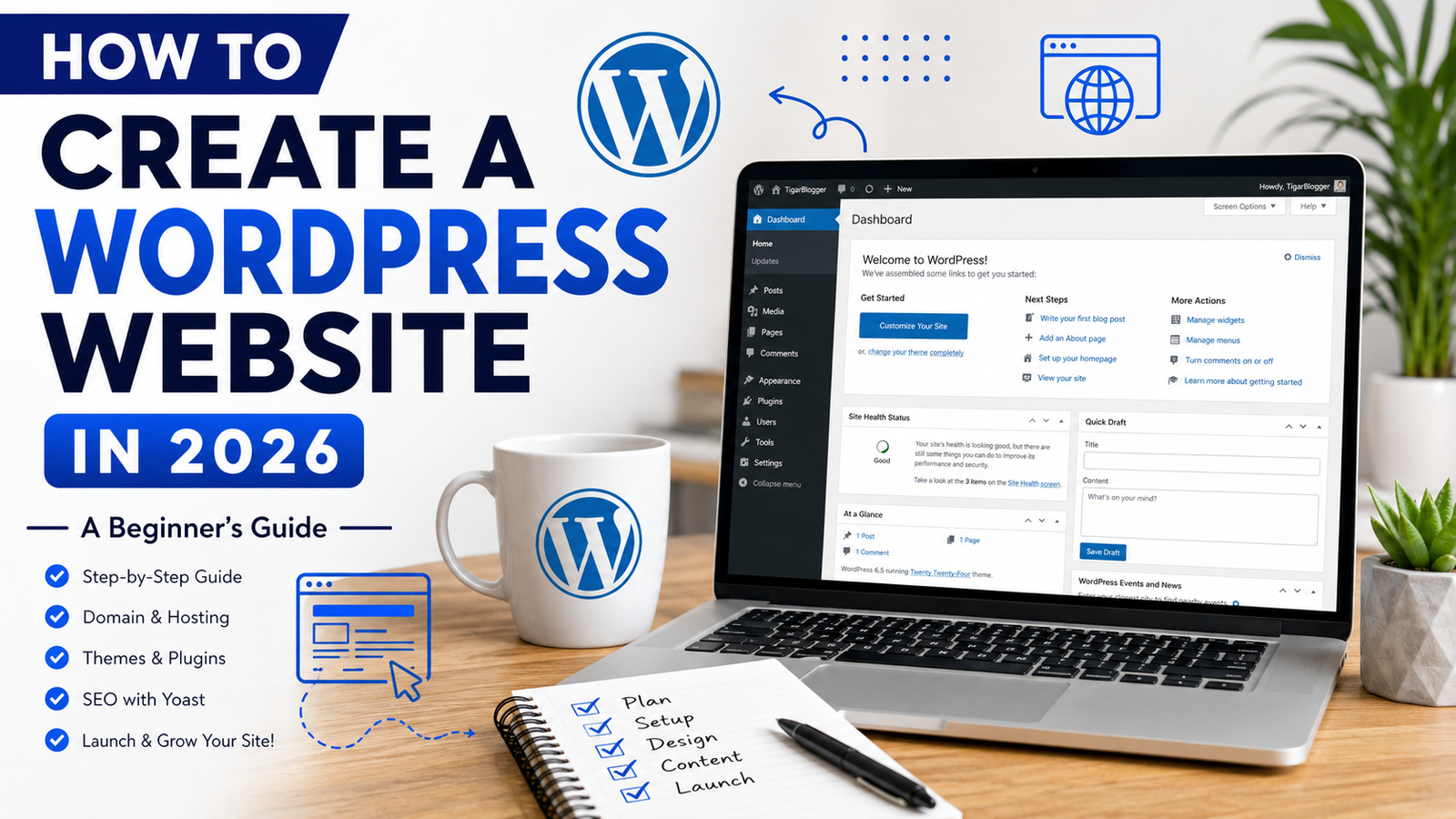
Creating a website in 2026 is easier than ever, even if you have no coding experience. Whether you want to start a blog, build a business website, launch an online portfolio, or create a website to earn money online, WordPress provides the tools you need to get started.
WordPress is one of the most popular website-building platforms because it offers flexibility, thousands of themes and plugins, and extensive customization options. With a domain name, web hosting, and a few simple steps, you can build a professional website.
In this guide, you will learn how to create a WordPress website in 2026, choose the right hosting, install WordPress, customize your design, publish content, and optimize your website for search engines.
What Is WordPress?
WordPress is a content management system (CMS) that allows you to create and manage websites without needing advanced programming skills.
You can use WordPress to build different types of websites, including:
- Personal blogs and professional websites
- Business and service websites
- Affiliate marketing websites
- Online stores
- Technology and AI blogs
- News and educational websites
- Portfolio and freelance websites
There are two commonly discussed versions of WordPress. WordPress.org is the self-hosted software that you can install on your own hosting account. WordPress.com is a hosted service with its own plans and features.
For this tutorial, we will focus on self-hosted WordPress using WordPress.org software.
Step 1: Choose a Domain Name
A domain name is your website’s address on the internet. For example, tigarblogger.com is a domain name.
Choosing the right domain is important because it helps visitors recognize and remember your website.
Follow these tips when selecting a domain name:
- Keep it short and easy to remember.
- Choose a name that fits your website’s purpose.
- Avoid unnecessary numbers and hyphens.
- Select a suitable extension, such as .com.
- Check that the name does not infringe on an existing trademark.
You can register a domain through a reputable domain registrar or a hosting provider that offers domain registration.
Before purchasing, check the renewal price, registration conditions, and whether domain privacy is available.
Step 2: Buy Reliable Web Hosting
Web hosting stores your website’s files and makes them accessible to visitors online.
When selecting a hosting provider, consider performance, uptime, security, customer support, backups, and renewal costs.
Popular hosting options include Hostinger, Bluehost, SiteGround, and other providers that support WordPress.
If you are a beginner, managed WordPress hosting or a beginner-friendly shared hosting plan can be a convenient starting point.
Look for these essential hosting features:
- WordPress installation support
- SSL certificate
- Regular backup options
- Adequate storage and bandwidth
- Security tools
- Reliable customer support
You do not necessarily need an expensive hosting plan when starting a small blog. Choose a plan that matches your current needs and upgrade when your traffic grows.
Step 3: Install WordPress
After purchasing hosting, the next step is to install WordPress.
Many hosting companies provide an automatic WordPress installer, making the process straightforward.
Here is the general installation process:
- Log in to your hosting account.
- Open your hosting dashboard.
- Find the WordPress installer or website management section.
- Select your domain name.
- Enter your website title, administrator username, and a strong password.
- Complete the installation.
- Open your WordPress dashboard.
Your dashboard is usually accessible through an address such as yourdomain.com/wp-admin, provided your domain and hosting are configured correctly.
Security tip: Use a strong, unique password and avoid predictable administrator usernames. Enable two-factor authentication if your security setup supports it.
If WordPress is already installed on your domain, you can skip this step.
Step 4: Choose a Professional WordPress Theme
A WordPress theme controls your website’s overall appearance, including its layout, typography, colors, and design elements.
A good theme should be responsive, fast, easy to customize, and suitable for your niche.
Some popular WordPress themes include:
- Astra: A flexible theme with customization options for different website types.
- GeneratePress: A lightweight theme focused on performance and simplicity.
- Kadence: A customizable theme with modern design features.
- Blocksy: A theme with flexible layout and styling options.
To install a theme, follow these steps:
- Log in to your WordPress dashboard.
- Navigate to Appearance → Themes.
- Click Add New Theme.
- Search for your preferred theme.
- Click Install and then Activate.
For a beginner-friendly blog, Astra or GeneratePress can be a good starting point. You do not need to install multiple themes; activate one and customize it to match your brand.
Step 5: Customize Your Website Design
Once your theme is active, customize your website so it looks professional and is easy to navigate.
Depending on your theme, you may find these settings under Appearance → Customize, the Site Editor, or the theme’s own settings panel.
Start with these elements:
Website logo: Create a simple logo that matches your brand.
Colors: Use two or three consistent brand colors.
Typography: Select readable fonts and maintain consistent heading sizes.
Header: Add your logo and main navigation menu.
Homepage: Display your main topic, important articles, categories, or services.
Footer: Include useful links, copyright information, and contact details.
Your website should also work properly on mobile phones, tablets, and desktop computers.
Avoid adding too many animations, pop-ups, and unnecessary design elements. A clean layout helps visitors find information quickly.
Step 6: Install Essential WordPress Plugins
Plugins add features to your WordPress website without requiring you to build everything from scratch.
However, installing too many plugins can make maintenance more difficult. Choose reliable plugins that serve a clear purpose.
Here are some plugin categories to consider:
- SEO: Yoast SEO or Rank Math can help optimize page titles, meta descriptions, and other SEO settings.
- Security: Wordfence Security is one option for website security features.
- Backups: UpdraftPlus is an option for creating and managing backups.
- Forms: WPForms or another reputable form plugin can help you create contact forms.
- Performance: A caching or optimization plugin compatible with your hosting environment can improve loading speed.
- Analytics: Google Site Kit can connect supported Google services to WordPress.
You do not need every plugin listed above. Choose tools that meet your requirements, keep them updated, and remove plugins you no longer use.
Before installing a caching plugin, check whether your hosting provider already supplies caching or performance optimization features.
Step 7: Create Important Website Pages
Every professional website should provide visitors with clear information about its purpose and ownership.
Create these essential pages:
Home: Introduce your website and guide visitors to important content.
About Us: Explain who runs the website, what it covers, and how it helps readers.
Contact Us: Give visitors a way to contact you through a form or published business email.
Privacy Policy: Explain how your website collects, uses, and handles personal information.
Terms and Conditions: Describe the rules that apply to visitors using your website, where appropriate.
Disclaimer: Explain relevant limitations, affiliate relationships, or other disclosures when applicable.
You can create pages by navigating to Pages → Add New Page in the WordPress dashboard.
Make sure your legal pages accurately describe your actual website practices. For example, do not claim that you collect no personal data if your forms, analytics, or advertising tools collect it.
Step 8: Publish Your First Blog Posts
If you are building a blog, publishing useful and original content is one of the most important steps.
Before writing, identify your audience and the questions they want answered.
For example, if your website focuses on WordPress, blogging, SEO, and AI tools, you could publish articles such as:
- How to Create a WordPress Website in 2026
- Best WordPress Plugins for Beginners
- How to Improve WordPress Website Speed
- How to Write SEO-Friendly Blog Posts
- Best Free AI Tools for Bloggers
- How to Submit a Website to Google Search Console
To publish a post:
- Open Posts → Add New Post.
- Enter a clear and descriptive title.
- Write helpful content organized with headings.
- Add relevant images where they improve the article.
- Select a suitable category.
- Add a featured image.
- Review the article on desktop and mobile.
- Publish when it is ready.
Focus on answering the reader’s question thoroughly rather than writing a specific number of words just to make the article longer.
Step 9: Optimize Your Website for SEO
Search engine optimization (SEO) helps search engines understand your website and can improve its chances of appearing in relevant search results.
Although SEO does not guarantee rankings or traffic, a well-structured website gives search engines and visitors a clearer experience.
Follow these basic SEO practices:
Use descriptive titles: Write unique page titles that explain the topic.
Research keywords: Understand the phrases your target audience uses when searching for information.
Organize headings: Use a clear H1 title and logical H2 and H3 subheadings.
Write helpful meta descriptions: Summarize each important page accurately.
Optimize images: Compress images and write descriptive alternative text when appropriate.
Use internal links: Link related articles to help readers discover more content.
Improve page speed: Use appropriately sized images, quality hosting, and suitable performance settings.
Create useful content: Provide accurate information, practical examples, and original insights.
You should also set up Google Search Console and submit your XML sitemap. Many SEO plugins generate a sitemap automatically.
Remember that installing an SEO plugin alone does not guarantee first-page rankings. Content quality, competition, website performance, and many other factors influence search visibility.
Step 10: Make Your WordPress Website Secure
Website security should be part of your setup from the beginning.
Take these precautions:
- Use HTTPS with a valid SSL certificate.
- Keep WordPress, themes, and plugins updated.
- Use strong passwords for all administrator accounts.
- Enable two-factor authentication when possible.
- Create regular backups and verify that they can be restored.
- Limit administrator access to trusted users.
- Remove unused themes and plugins.
- Use reputable security tools and hosting services.
Never share your WordPress administrator password with an untrusted person. If you hire a developer, provide a separate account with only the permissions they need.
Step 11: Test Your Website Before Launch
Before promoting your website, check that everything works correctly.
Use this launch checklist:
- Your domain opens correctly.
- HTTPS works without certificate warnings.
- Your logo and navigation menu display properly.
- Your important pages are published.
- Contact forms work.
- Your website looks good on mobile devices.
- Images load correctly.
- There are no broken links or placeholder texts.
- Backups and security settings are configured.
- Google Search Console is set up when appropriate.
You can use Google’s PageSpeed Insights to check performance and identify opportunities to improve loading speed.
Once you have tested the important features, you can begin sharing your website with your intended audience.
How Much Does It Cost to Create a WordPress Website in 2026?
The cost depends on your hosting provider, domain extension, design requirements, and the tools you choose.
A basic website may require only a domain name and hosting subscription. A more advanced website may require premium themes, paid plugins, professional design, or additional services.
| Website requirement | Possible cost |
|---|---|
| Domain name | Depends on the extension and registrar |
| Web hosting | Depends on the plan and renewal price |
| Free WordPress theme | $0 |
| Free plugins | $0 for the free versions |
| Premium themes or plugins | Optional; prices vary |
| Professional development | Optional; depends on the project |
These are cost categories, not fixed prices. Check current prices and renewal terms before purchasing.
You can begin with free themes and plugins, then invest in premium tools when your website needs them.
Common WordPress Mistakes to Avoid
Beginners sometimes make avoidable mistakes that affect website performance, usability, or growth.
Installing too many plugins: Every plugin adds another component to maintain. Use only the tools you need.
Choosing an unsuitable theme: A theme should support your content and provide a good mobile experience.
Ignoring backups: A backup can help you recover from technical problems, failed updates, or accidental changes.
Publishing copied content: Create original, useful articles instead of copying content from other websites.
Ignoring mobile users: Test your site on different screen sizes before launch.
Expecting instant SEO results: Search visibility takes time, and results are never guaranteed.
Forgetting legal pages: Provide accurate policies and disclosures relevant to your site’s actual activities.
Avoiding these mistakes can make your website easier to manage as it grows.
Conclusion
Creating a WordPress website in 2026 does not require advanced coding skills. By choosing a suitable domain and hosting plan, installing WordPress, selecting a professional theme, configuring essential plugins, and publishing useful content, you can build a website that is ready to grow.
Start with the basics, keep your design simple, and prioritize security, performance, and user experience. As your website develops, you can add new features based on your audience’s needs.
Visit Tigar Blogger for more practical guides about WordPress, SEO, blogging, AI tools, and website development. Keep learning, improve your content, and build your online presence one step at a time.
Frequently Asked Questions (FAQs)
1. Is WordPress free in 2026?
The WordPress.org software is free to download and use. However, a self-hosted website generally requires paid web hosting and may require a paid domain name. Premium themes and plugins are optional.
2. Can I create a WordPress website without coding?
Yes. You can create and manage most standard WordPress websites using themes, the block editor, and plugins without writing code.
3. How long does it take to build a WordPress website?
A simple website can sometimes be set up in a few hours. A more complex website may take several days or longer, depending on its design, content, and functionality.
4. Which WordPress theme is best for beginners?
Astra, GeneratePress, Kadence, and Blocksy are popular options. The best choice depends on your design preferences, required features, and performance needs.
5. Can I earn money from a WordPress website?
Yes. Depending on your audience and business model, you can earn through advertising, affiliate marketing, digital products, online services, memberships, or selling physical products. Earnings are not guaranteed and usually require time, useful content, and audience development.
6. Is WordPress good for SEO?
WordPress provides many SEO-friendly features and supports plugins that help optimize content. However, good rankings also depend on content quality, technical setup, competition, and other search engine factors.
7. Do I need a plugin to make my WordPress website secure?
Not necessarily. Security also depends on strong passwords, updates, reliable hosting, backups, and appropriate access controls. A reputable security plugin can provide additional protection.